

Can customers use discount codes alongside GWPs?
Yes—usually, but it depends on the cart
In Roadmap, a Gift with Purchase (GWP) works by automatically adding a free gift line item to the cart once your GWP rules are met. Because it’s an added item (not always a visible price reduction), customers can often still enter a discount code at checkout.
If you’re only watching for a “discount amount” at checkout, you may miss that the GWP is working—the gift should appear as a new line item in the cart.
What can prevent a discount code + GWP from working together
Even if codes are allowed, a code can change the cart enough that the GWP no longer qualifies—or another promotion may take precedence.
- The code drops the cart below your GWP Conditions (for example, a Minimum Spend threshold set under If the customer spends at least…).
- Customer Eligibility excludes the shopper (for example, the GWP is set to Logged in only customers or Members).
- Overlapping promotions are active at the same time (another offer targets the same products/customers).
- Loyalty or referral coupons are being used and cause confusing results (for example, a points redemption coupon created under Redeem points → Ways to redeem, or a referral reward where Referral Program reward type is set to Discount).
Roadmap documentation notes that Shopify generally applies the best discount for the customer when multiple discounts could apply. If offers conflict, the final checkout result may not match what you expected.
Where to check this in the Roadmap UI
- Go to Discounts / Gift with Purchase and open your GWP.
- Review Status and Active Dates (Start date/Start time, optional Set end date).
- Review Conditions (for example, Minimum Spend, Buy X Get Y, or Buy A+B+C Get Y).
- Review Customer Eligibility (for example, All customers, Logged in only customers, Customers tagged with, Members, etc.).
- Review Free Gifts (select gift via Search variants or Browse, set Maximum number of uses per order, and optional cart messaging in Note).
How to test if a discount code can be used with your GWP
Go to Discounts / Gift with Purchase, open the promotion, and confirm:
- Status is Active
- Active Dates are in-range (Start date/Start time has passed; if enabled, Set end date has not ended)
Build a cart that matches your Conditions. The “pass” condition is that the free gift line item is automatically added to the cart.
Enter the discount code at checkout and verify both of these are true:
- The cart still meets your GWP Conditions (especially Minimum Spend).
- The customer still matches Customer Eligibility (for example, they are logged in if you selected Logged in only customers).
If results are inconsistent, temporarily pause other running promotions (especially those targeting the same products/customers), then retest with only one GWP active.
To make “GWP + code” more predictable, keep your GWP Conditions simple (for example, a clear Minimum Spend) and use Customer Eligibility to separate audiences (VIP vs non-VIP) instead of overlapping product rules.
If the GWP is Members-only, double-check tiers
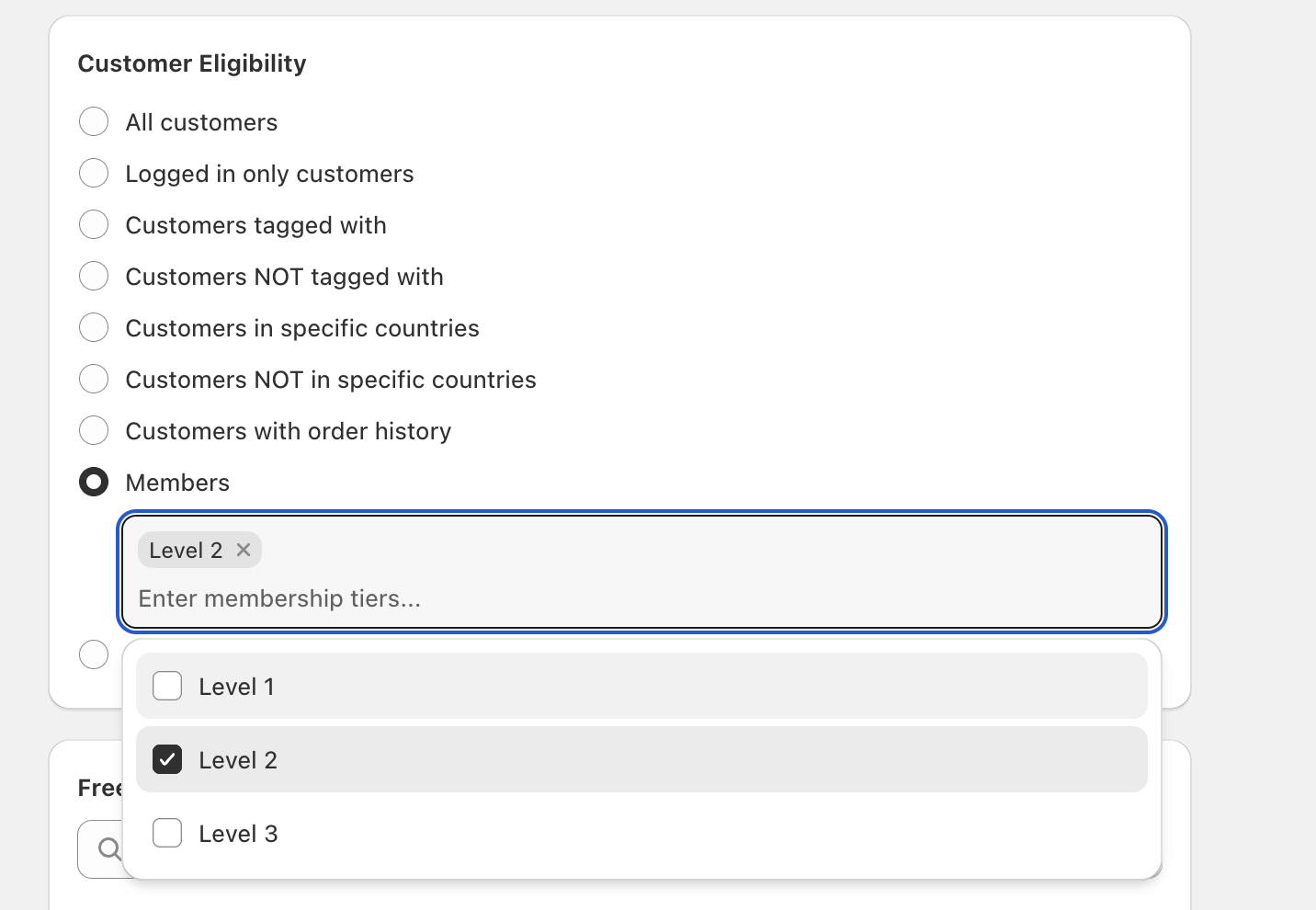
If your GWP uses Customer Eligibility = Members, make sure you’ve selected at least one tier in the field labeled Enter membership tiers… (for example, Level 2). If no tiers are selected, the GWP won’t trigger for anyone.
FAQ
Most commonly, the code changes the cart so it no longer meets the GWP Conditions (especially Minimum Spend). Open the GWP in Discounts / Gift with Purchase and compare your test cart against the exact rule (products/variants, quantities, and spend threshold).
That usually indicates Customer Eligibility. In your GWP, review whether eligibility is set to Logged in only customers, Customers tagged with, Customers in specific countries, or Members. Then test with a real customer account that matches those rules.
This is a common setup. Keep the GWP limited via Customer Eligibility (for example, Members with selected tiers in Enter membership tiers…) and make sure your GWP Conditions don’t overlap with other active promotions.